English
 한국어
 français
 Deutsch
 Español
 italiano
 русский
 português
 العربية
 Türkçe
 Polska

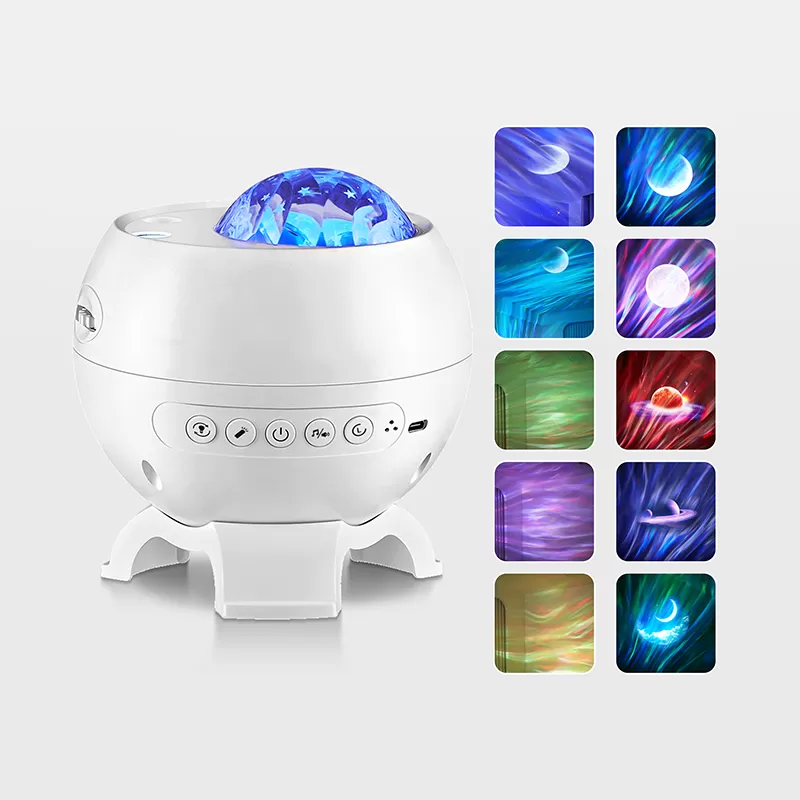
Setting up a OneFire galaxy projector is usually straightforward, but the steps for adjusting focus, changing projection discs and connecting Bluetooth audio depend on which model you own. The WH-E18 HD Galaxy Projector 1.0 and WH-E20 HD Galaxy Projector 3.0, for example, have different projection media, power requirements and built-in functions.
If your projected image looks blurry, your phone cannot find the Bluetooth speaker or the galaxy projector does not turn on, it is important to identify the model before troubleshooting. Using the wrong power adapter or attempting to remove a projection disc incorrectly can make the problem worse.
This OneFire galaxy projector setup guide explains the general setup process, focus adjustment, projection disc handling, Bluetooth pairing and common troubleshooting checks. It uses published WH-E18 and WH-E20 product specifications. For exact button sequences, disc access mechanisms and model-specific operating instructions, always follow the manual supplied with your projector.
QUICK START
How to Set Up a OneFire Galaxy Projector
Check the model number and the supplied accessories.
Use the input specification stated on the product label.
Place it on a stable surface facing a wall or ceiling.
Select a projection scene and adjust focus if supported.
Use audio pairing mode according to your model's instructions.
Important: Bluetooth audio, focus adjustment, projection discs and timer controls vary by product. Do not assume that all OneFire galaxy projector models use the same buttons or accessories.
MODEL IDENTIFICATION
1. Identify Your OneFire Galaxy Projector Model
Before following a setup or troubleshooting guide, check the model number on the product label, packaging or user manual. OneFire's HD galaxy projector range includes the WH-E18, WH-E20 and WH-E25 series, with different projection features and electronic specifications.
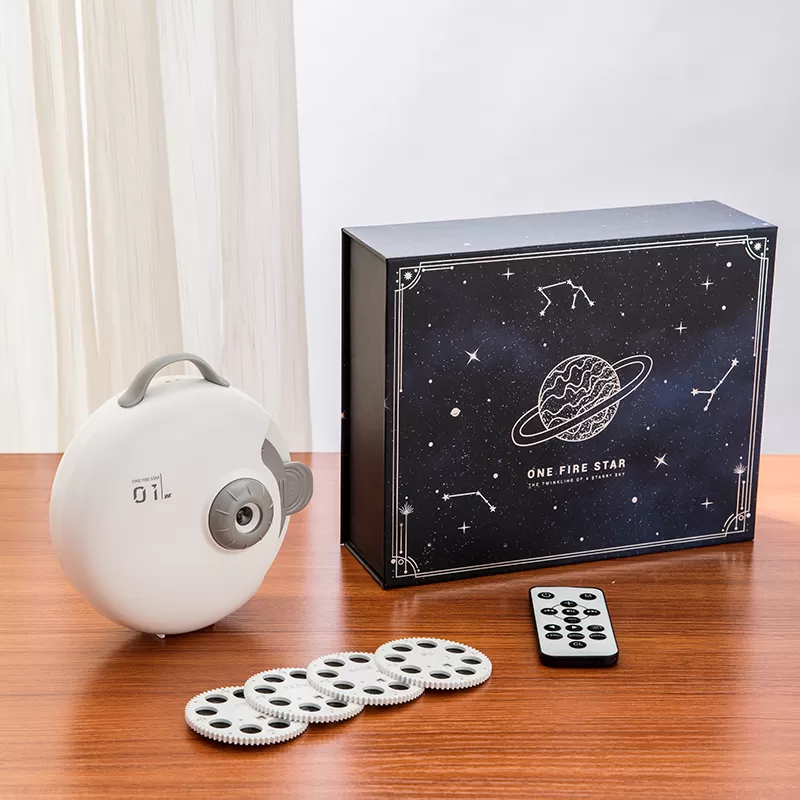
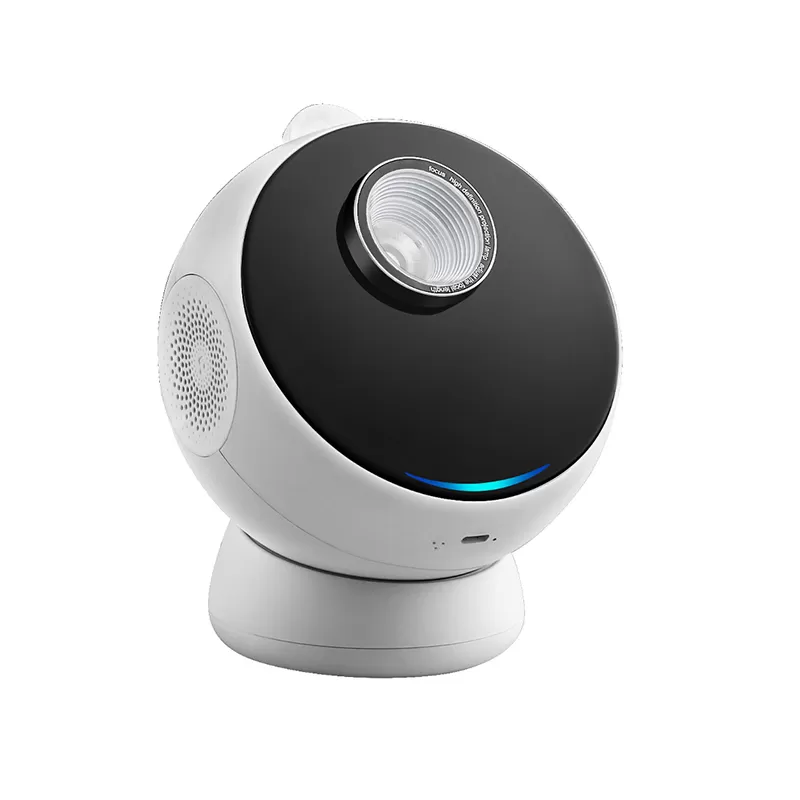
Why model identification matters:The WH-E18 uses four discs and a published 5V/1A input, while the WH-E20 has six slides and a published 5V/2A input. Always follow the actual device label and supplied manual, especially if your product is from a different production version.
INITIAL SETUP
2. How to Position and Power Your Galaxy Projector
A stable position, correct electrical input and suitable projection surface are important for image quality. Before connecting power, inspect the supplied cable and check that the projector and its accessories are undamaged.
Step 1. Choose a Stable Location
Place the projector on a level, dry surface. Aim the projection lens toward a wall or ceiling, avoiding direct exposure to eyes. Keep ventilation openings clear and place the charging cable where it cannot be pulled or tripped over.
Step 2. Connect the Correct Power Supply
Use the input voltage and power requirements stated on your model's label. The published WH-E18 input is 5V/1A, while the WH-E20 input is 5V/2A. Use a suitable cable and power supply that meet the manufacturer's instructions.
Step 3. Turn On the Projector
Use the power control identified in the supplied manual. Depending on the model, lighting, projection, audio and timer functions may have separate controls. Check that the projected image appears before attempting to adjust additional settings.
Step 4. Check the Projection Surface
Start with a relatively plain wall or ceiling in a dim room. Very bright ambient lighting, textured surfaces or an unsuitable projection distance may make details appear less distinct. Test a different distance if the image looks too large or soft.
IMAGE CLARITY
3. How to Adjust OneFire Galaxy Projector Focus
A blurry galaxy projection is not always caused by a defective lens. Projection distance, image selection, focus adjustment, ambient light and the condition of the optical surface can all affect image clarity.
The OneFire WH-E20 product description specifically lists adjustable focus. For the WH-E18 or other models, consult the supplied manual before assuming that the same focus mechanism is available.
Focus Adjustment Checklist
1. Select a detailed image.A projection with clear stars, planetary edges or visible outlines makes focus adjustment easier to evaluate.
2. Use a suitable projection distance.Start with a nearby wall or ceiling and adjust the projector position gradually. Avoid assuming that every distance will provide equally sharp images.
3. Adjust the designated focus control.If your model provides manual focus, use the labeled focus mechanism according to its instructions. Make small adjustments while observing the projected image.
4. Check the projection media.Make sure the appropriate slide or disc is installed correctly and is free from visible dirt or damage.
5. Inspect the lens without disassembling it.If the external lens surface is dirty, follow the manufacturer's cleaning instructions. Avoid scratching the optical surface or applying liquids directly to the projector.
Important: Do not force a lens ring or rotate an unmarked component. If the projector does not have a user-adjustable focus control, repositioning the device may be the appropriate adjustment. Use the model-specific manual to confirm.
PROJECTION MEDIA
4. How to Change Galaxy Projector Discs and Slides
Projection discs and slides are responsible for the galaxy scenes displayed by compatible OneFire models. The WH-E18 includes four discs with 32 images in total. The WH-E20 lists six projection slides covering different celestial themes.
WH-E18
4 Projection Discs
The WH-E18 features four interchangeable discs and 32 projected images in total. Check the provided instructions for selecting images and handling the discs without damaging the projection mechanism.
WH-E20
6 Projection Slides
The WH-E20 lists six scenes: Milky Way, Saturn, Full Moon, Black Hole Journey, Dolphin Nebula and Andromeda. It also offers dynamic meteor effects in the specified version.
Safe Handling Procedure
Step 1: Turn off the projector and disconnect external power before accessing removable projection media, unless the manufacturer's instructions specify another procedure.
Step 2: Identify the designated disc or slide access point in the exact model's manual. Do not remove structural screws or force the projector housing open.
Step 3: Handle removable media by its edges and avoid touching the image surface. Protect unused discs or slides from dust and scratches.
Step 4: Install the desired media using the orientation and locking method specified by the manufacturer. The WH-E18 and WH-E20 should not be assumed to share an identical loading mechanism.
Step 5: After the media is seated and the access area is closed, restore power, verify the projected image and adjust focus if the model supports it.
Disc compatibility: Do not assume that projection discs from different models or product generations are interchangeable. Ask OneFire to confirm the correct accessories using the exact model number.
WIRELESS AUDIO
5. How to Connect a OneFire Galaxy Projector to Bluetooth
The published specifications for the WH-E18 and WH-E20 list Bluetooth functions that support audio playback. This allows compatible mobile devices to send music to the projector's speaker. However, Bluetooth audio pairing does not necessarily mean the projector supports control through a mobile app.
Step 1. Turn On the Projector
Make sure the projector has sufficient power and is switched on. If your model has multiple audio modes, consult the supplied manual to select Bluetooth audio mode and make the speaker discoverable.
Step 2. Open Bluetooth Settings on Your Phone
On an iPhone, open Settings and select Bluetooth. On Android, open Bluetooth settings and look for the pairing option. Keep the phone near the projector during the initial connection.
Step 3. Select the Projector's Bluetooth Audio Device
Look for the device name specified in your projector's manual or shown during the pairing process. Do not assume every OneFire model uses the same Bluetooth device name. Select the correct device and follow any on-screen pairing instructions.
Step 4. Test Audio Playback
Play an audio track at a moderate volume. If you cannot hear the sound, check your phone's audio output destination, media volume and the projector's speaker settings.
For phone-specific Bluetooth instructions, see Apple's Bluetooth accessory pairing guide and Google's Android Bluetooth setup instructions.
Does OneFire Galaxy Projector Have an App?
A common search question is whether a OneFire galaxy projector requires an app for setup. The published WH-E18 and WH-E20 specifications confirm Bluetooth audio features but do not identify a dedicated mobile control app for these models.
Do not download an unrelated app simply because it uses the words "galaxy projector." Only use a mobile application when the model-specific instruction manual, packaging or manufacturer confirms its compatibility.
EXTRA FUNCTIONS
6. Built-In Music, White Noise, Rotation and Timer Functions
The WH-E18 and WH-E20 include additional electronic functions, but their built-in audio libraries are different. It is useful to distinguish the projector's internal sounds from music streamed through a phone.
WH-E18 Audio
The published WH-E18 specification lists four soothing melodies and four white-noise sounds. Bluetooth is available for playing audio from a compatible source device.
WH-E20 Audio
The WH-E20 lists ten built-in soothing melodies, Bluetooth streaming and volume adjustment. Timer shutdown and projector rotation are also listed features.
How to Use the Auto-Off Timer
For models with an auto-off timer, follow the instructions to select a supported duration. Confirm the selected mode and test whether the projector switches off as expected. Timer duration and whether it affects both lighting and audio depend on the model and configuration.
If your projector does not respond to a remote-control command, first check the relevant battery, power status and the specified remote operation procedure. Do not assume that every accessory or remote is interchangeable between OneFire models.
TROUBLESHOOTING GUIDE
7. Common OneFire Galaxy Projector Problems and Solutions
Start with simple external checks before assuming that an internal component has failed. Do not open the housing or attempt electrical repairs. If the product shows damage, overheating or unusual smells, disconnect power and contact the seller or manufacturer.
Problem 1: The Galaxy Projector Will Not Turn On
Check the device's power label, approved cable and power supply. If the model is rechargeable, allow it to charge as instructed. Inspect accessible connections for damage and use the designated power control. If the projector still does not respond, stop testing and contact product support rather than opening the device.
Problem 2: The Projected Image Is Blurry
Reduce surrounding light, check projection distance and verify that the correct disc or slide is fitted. For models such as the WH-E20 with adjustable focus, use the designated focus control. Check the external lens surface according to the cleaning instructions.
Problem 3: The Projection Disc or Slide Does Not Change
Confirm whether the model uses interchangeable discs, removable slides or an internal scene-selection control. Follow the correct media-handling procedure from the manual. Do not force a disc tray or insert media from another product model without compatibility confirmation.
Problem 4: The Phone Cannot Find the Galaxy Projector on Bluetooth
Check that the projector supports Bluetooth audio and is in its designated discoverable mode. Make sure Bluetooth is enabled on the phone, bring the devices closer together and refresh the available-device list. If another phone is already connected, disconnect it according to the device instructions and try again.
Problem 5: Bluetooth Connects but There Is No Sound
Check whether the phone is sending media audio to the projector rather than another speaker or headphones. Confirm media volume, the projector's audio settings and whether a built-in sound mode is active. Test a second audio source if necessary.
Problem 6: The Image Appears but Does Not Rotate
Confirm that rotation is supported by the exact model and that the appropriate mode is enabled. Check whether the model's control allows rotation to be paused. If it is enabled but the mechanism does not operate normally, stop using the rotation function and seek support.
Problem 7: The Projector Turns Off Unexpectedly
Check whether an auto-off timer was selected or the battery is low. Verify the power cable and adapter. If the device becomes unusually hot, stops repeatedly or shows other signs of malfunction, discontinue use and contact the supplier.
MANUAL AND PRODUCT SUPPORT
8. Where to Find the OneFire Galaxy Projector Manual
If you need the exact meaning of a control button, the disc insertion procedure, Bluetooth device name or a remote-control function, use the manual for your specific model and production version.
You can start by checking the documentation supplied in the product package or by reviewing the relevant OneFire product page. The product pages provide specifications and a downloadable document option, although the downloadable files may not contain a complete step-by-step user manual.
Information to Provide When Requesting Support
Model number: For example, WH-E18 or WH-E20.
Version: Any version or batch identification printed on the label.
Problem: Power, projection, focus, Bluetooth, audio or timer.
Evidence: A photo or short video showing the issue, when practical.
Purchase details: Seller, order reference and available proof of purchase.
For model information or documentation inquiries, visit the OneFire contact page.
FREQUENTLY ASKED QUESTIONS
OneFire Galaxy Projector Setup FAQ
1. How do I set up a OneFire galaxy projector for the first time?
Identify the model, check the required power input and position the projector on a stable surface facing a wall or ceiling. Turn on the device using its designated controls, select a projection scene and adjust focus if supported.
2. How do I fix a blurry OneFire galaxy projector?
Check the projection distance, surrounding light, lens condition and disc installation. The WH-E20 supports adjustable focus. Use its designated focus mechanism according to the manual. Other models may have different adjustment methods.
3. How many projection discs does the WH-E18 include?
The WH-E18 HD Galaxy Projector 1.0 is listed with four interchangeable discs containing 32 projected images in total. Confirm the supplied accessories against the purchased version.
4. What projection slides are available for the WH-E20?
The published WH-E20 specification lists six projection scenes: Milky Way, Saturn, Full Moon, Black Hole Journey, Dolphin Nebula and Andromeda.
5. Does the OneFire galaxy projector require an app?
The published WH-E18 and WH-E20 specifications confirm Bluetooth audio but do not identify a dedicated control app. Use only software explicitly specified for your exact model in its official documentation.
6. Why will my phone not connect to the galaxy projector via Bluetooth?
Make sure the projector supports Bluetooth audio and is in discoverable mode. Refresh your phone's available devices, check whether another device is connected and follow the pairing instructions supplied with your projector.
7. Can I use different OneFire projection discs in the same projector?
Not necessarily. Projection media can differ in shape, size and installation method between models. Confirm compatibility with the manufacturer before using discs or slides from another product.
8. Why does my OneFire galaxy projector switch off automatically?
An enabled timer or low battery may explain an automatic shutdown. Check the device's timer settings and power connection. If unexpected shutdowns continue, stop using the projector and request support.
Conclusion: Use the Correct Setup Instructions for Your OneFire Model
The most important step in setting up a OneFire galaxy projector is identifying the exact model. The WH-E18 offers four projection discs and built-in sound options, while the WH-E20 provides six slides, adjustable focus, dynamic meteor effects and additional audio functions.
If you encounter a blurry image, Bluetooth connection failure or power issue, begin with the safe external checks in this guide. For mechanical access, precise control sequences or unfamiliar functions, consult the product-specific manual rather than assuming all projector generations operate identically.
To compare additional projector models, explore OneFire's galaxy projector light collection. For other projection effects, visit the complete projector light range.
ONEFIRE GALAXY PROJECTOR SUPPORT
Need Model Information or Product Documentation?
Whether you need help identifying a OneFire galaxy projector model, confirming accessories or requesting technical specifications for a wholesale project, contact OneFire with your product model and requirements.
Contact OneFire for Product Information
Email:marketing@onefire.cn